
Steps to add a REACTIVAM2M to M2M deice from the rcontrol app.
These steps work for all M2M products requiring reactivation to add their corresponding subscription.
Before starting, we have to check if the device needs o to be reactivated. The moment you open the app, we view the following notification. If the notification read the following: “Your voucher is about to expire in xx days. Please click here to top up with a new voucher“.

It only requires you to add a voucher. To learn to add a voucher, click below.
In case the notification reads, “Your voucher HAS EXPIRED and your device has been SUSPENDED. Please click here to top up with a new voucher.”
It is necessary to reactivate.
1.- Starting the app, we see this screen. Click on the red notification.

2.- After clicking the notification, this will directly send us to the menu to add the reactivation voucher and click on “Set voucher.”
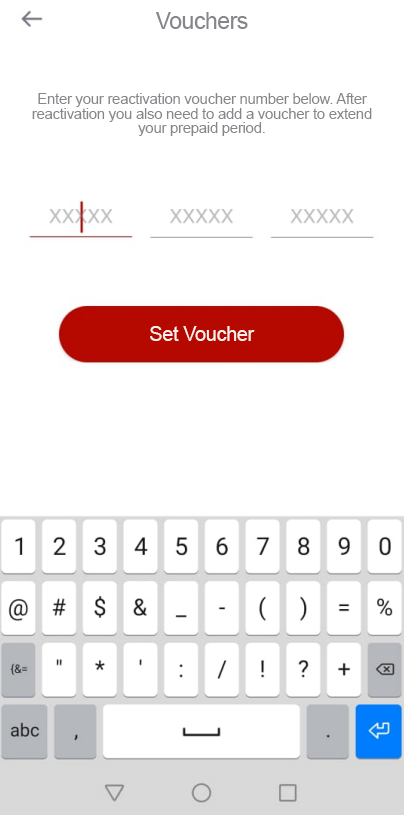
The voucher/reactivation is on your invoice.

Note: In case of purchasing more than one license, they will be separated by an asterisk symbol *.
3.- After entering the voucher, we view the following notification.

After clicking “OK,” you will be sent to the main menu.
There is still a notification in red, but we are informed that the device requires a subscription voucher this time.
It is recommended to add the reactivation simultaneously; in case of not adding the subscription, the equipment can be suspended again (it is suggested to add a voucher before the last of the month in which it was reactivated, to avoid its deactivation.) you can follow the link on the button below.
We click the notification to enter the menu again.

After adding the voucher, we will receive the following message.

There will be no alert notification; if the alert is still on the main menu, call tech support.