This post will go over the proper management and storage of Fiber Optic drums
Some businesses have external and/or internal storage depending on the available space. For this reason, this article will show you how to stack Fiber Optic drums by the FiberHome brand properly.
For a 3 layer stack, it is necessary to have the following parameters in mind. 1.- Drum diameter ≤ 1600mm (less than or equal) 2.- Gross weight ≤ 1000kg/drum (less than or equal)
The image below is an example of the stacking mentioned.
For a 2 layer stack, it is necessary to have the following parameter in mind: 1.- Drum diameter ≤ 1600mm (less than or equal) 2.- Gross weight ≤ 1000kg/drum (less than or equal)
The image below is an example of the stacking mentioned.
It can be supported by wedges so that the reels do not move and ensure their stability.
Use a piece of wood as a pad (50cm * 16cm * 7cm) under each side of the bottom layer drums.
Use nails and triangle wood to fix that underlay and ensure the drums can no longer slip.
The image below is an example of the wedges mentioned.
If you wish to learn about loading/unloading these Fiber Optic drums, you can check this article.
This article shows the correct way to unload these reels for later storage.
Steps for a correct unloading operation
1.- Once the fiber optic drums are delivered to the corresponding warehouse, workers should unload them in a dry environment if it rains; the unloading should be done on a roofed area or in a warehouse. The cable mustn’t get wet.
The image below shows the incorrect unloading of the product.
Incorrect process: loading and unloading on rainy days Consequences: the cable is wet, creating mold.
2.- The fork width of the forklift must be adjustable.
Adjust the fork width to avoid the drums from sliding left or right during the unloading process to avoid damaging the drums.
3.- While operating the forklift, we heavily recommend only unloading one drum at a time.
It is not recommended to unload more than one at a time as the forklift bars may not be long enough, causing them not to be positioned correctly and may fall and damage the drums.
4.- For the loading and unloading of the reels, it is strictly forbidden to introduce the forklift bars inside (in the middle) of the reels; to support it to raise it correctly, a person must push the drum. Remember not to make the following mistakes once the drum is on the forklift.
Mistake 1.- do not place the drum on the center of the forks. It can also damage the drum.
Mistake 2.- do not align the drum with the forks. It can cause damage, or the drum might roll.
Mistake 3.- Introducing the forks inside the drum can damage the packaging, structure, and fiber.
Mistake 4.- Do not force the drum up on the forklift bars; remember that a person can support by pushing the reel. It can also break or cause damage to the drum.
If you wish to learn about managing the storage of these Fiber Optic drums, you can check this article.
La tecnología de video de IDIS fabricada en corea se prueba regularmente en situaciones de alta seguridad, pero pocas son tan dramáticas o importantes como el proyecto Volcán de Fuego.
El volcán, uno de los más activos y peligrosos del mundo, ahora se vigila día y noche para dar una alerta temprana de erupciones inminentes. .
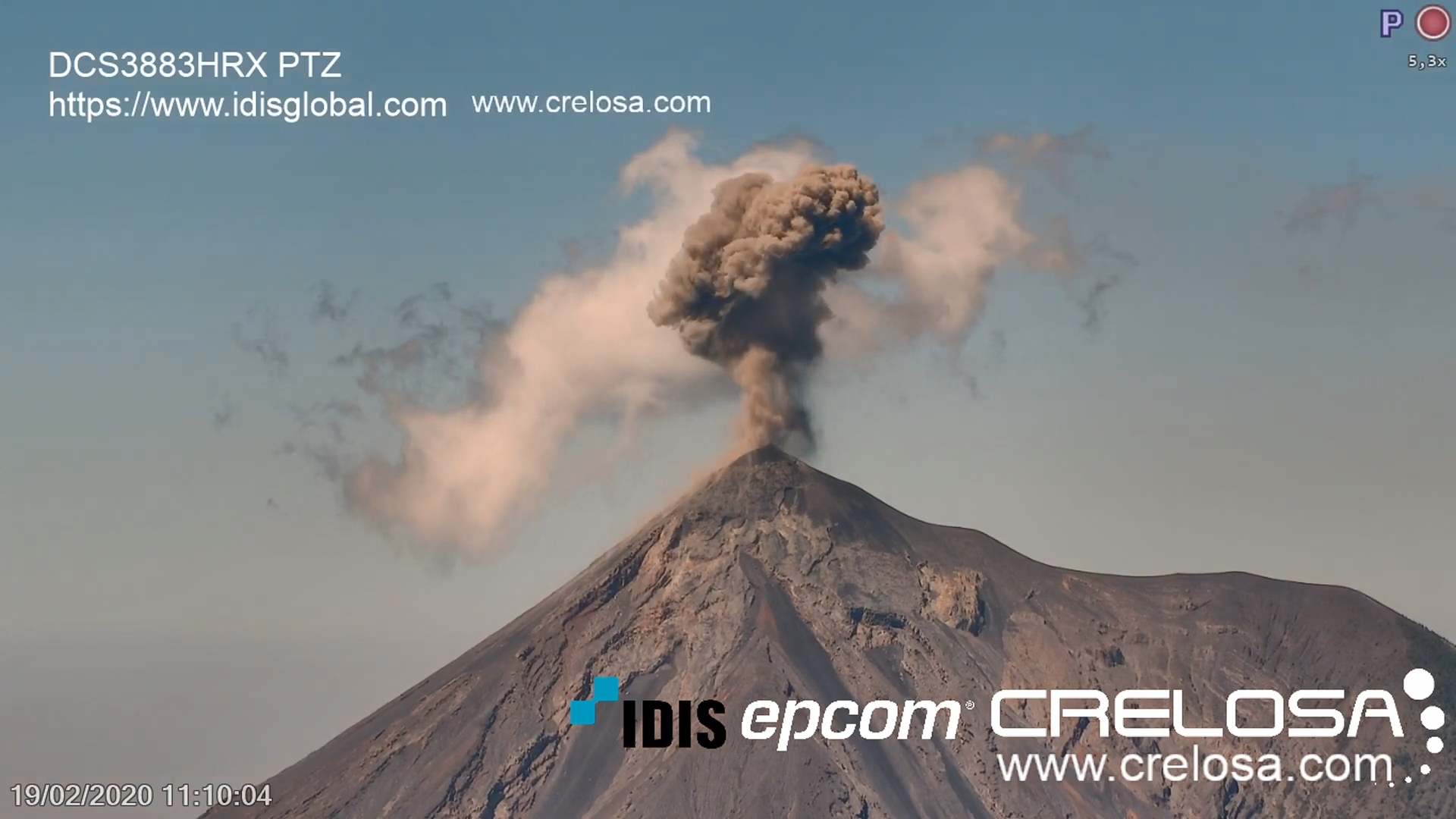
Imagen del livestream del Volcán de Fuego capturado por la cámara DC-S3883HRX
Los cuidadanos, las agencias de emergencia y los científicos ahora pueden ver imágenes en vivo continuas de este ‘volcán de fuego’, todas capturadas por la galardonada cámara PTZ IR de 8MP 31x de IDIS.
Incluso a 9 millas de distancia, el modelo de 8 megapíxeles ofrece una vigilancia diurna y nocturna de ultra alta definición de la caldera activa, mostrando erupciones repentinas de gas y ceniza con una frecuencia de 15 a 20 minutos.
En junio de 2018, casi 200 personas murieron durante una serie de explosiones y flujos piroclásticos que dejaron poco tiempo de evacuación. Esta fue la operación más poderosa del volcán desde 1974 y la más mortífera desde 1929, pero estuvo lejos de ser un incidente aislado. Se han registrado más de 60 grandes erupciones en los últimos cinco siglos, y con 54.000 personas viviendo en las fértiles tierras de cultivo dentro de las 6 millas del cráter, el riesgo sigue siendo alto.
Por lo tanto, el monitoreo continuo de video de alta definición, junto con datos de sensores que incluyen sismología y detectores de gas, ahora tiene como objetivo proteger a las comunidades vulnerables que viven alrededor del volcán al brindar una advertencia temprana.
La cámara DC-S3883HRX de IDIS
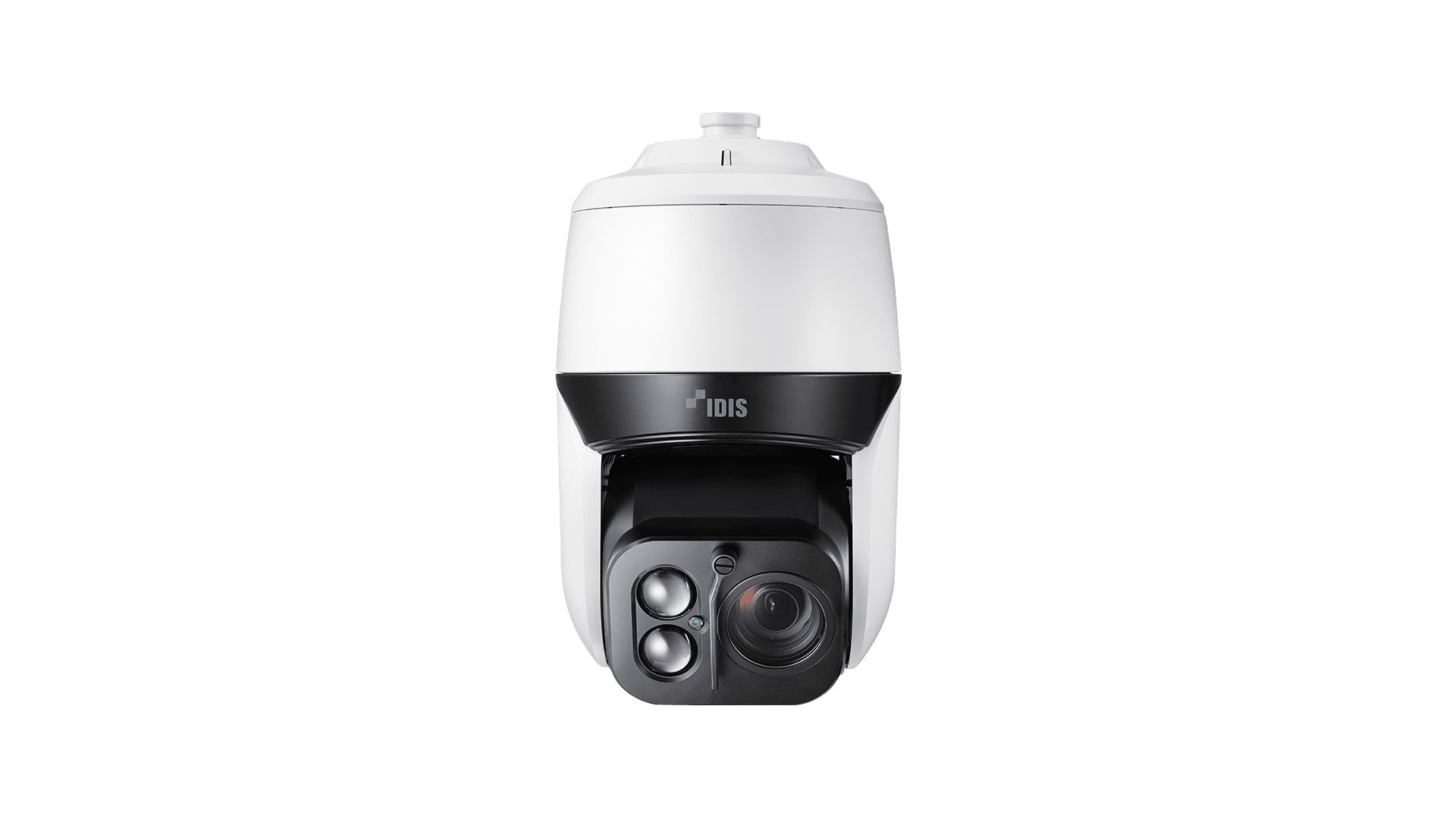
La cámara DC-S3883HRX H.265 IR, que cuenta con una lente de 8MP, enfoque automático y zoom óptico de 31x, rendimiento IR de hasta 200 m y un sensor de posicionamiento de retorno automático altamente sensible, fue instalada por EPCOM, socio de IDIS y especialista guatemalteco en telecomunicaciones Crelosa.
Al igual que todas las cámaras IDIS, el modelo, que ganó dos prestigiosos premios de diseño alemanes, se beneficia de una verdadera configuración plug-and-play con un solo clic, lo que significa que es ideal para una instalación sin problemas en altura, en entornos desafiantes y en ubicaciones. donde los ingenieros están expuestos a un mayor riesgo.
El IDIS PTZ también cuenta con un verdadero rango dinámico amplio (WDR), lo que le permite adaptarse fácilmente a las condiciones de iluminación cambiantes; la estabilización electrónica de imagen (EIS) garantiza una cobertura constante de las escenas a distancia, de modo que las imágenes del volcán permanezcan nítidas; y H.265 y el códec inteligente requieren un ancho de banda mínimo incluso para el monitoreo en vivo de 4K.
La cámara también se mantiene estable a pesar de las condiciones climáticas variables de la región, incluido el fuerte sol y los cambios extremos de temperatura diarios. Además, el limpiador de gotas de agua resulta esencial durante la temporada de lluvias.
Además, smart failover y la mejor garantía en la industria e IDIS Ultimate brindan a Cresola y a las agencias de monitoreo de volcanes de Fuego la tranquilidad de saber que la cámara continuará brindando videos en alta definición en uno de los entornos más dramáticos del mundo.
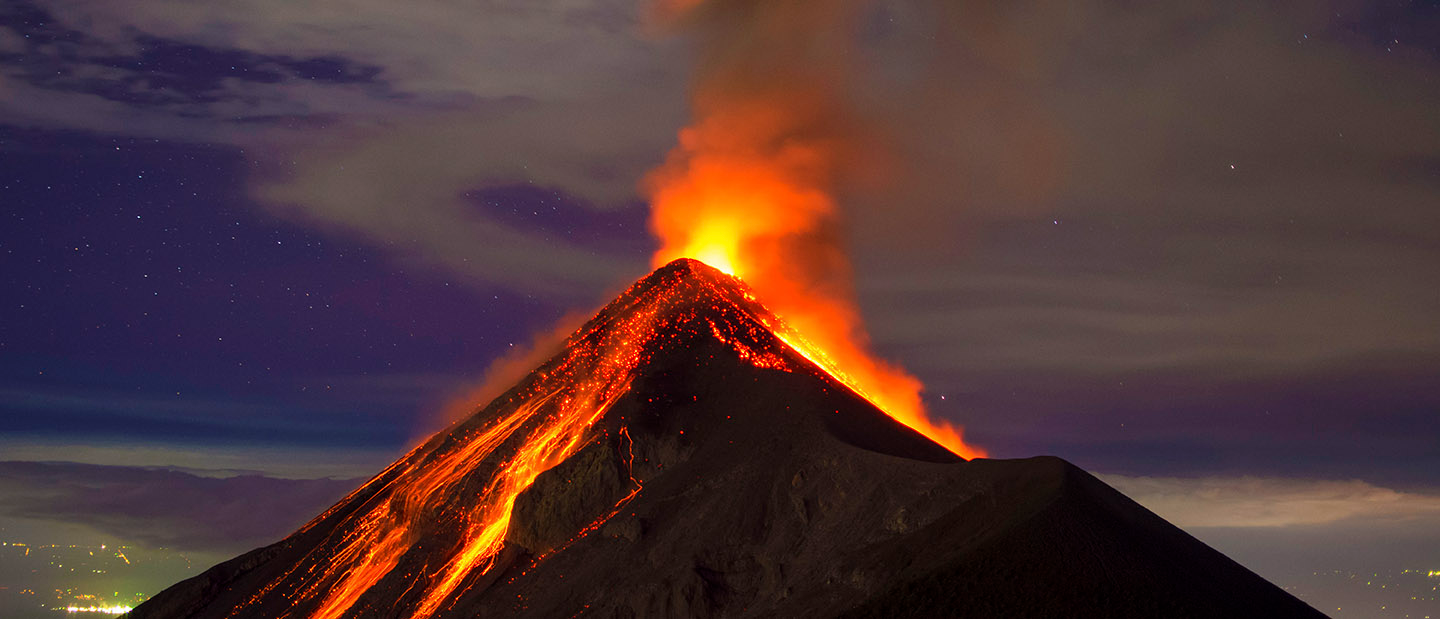
Erupción del Volcán de Fuego cercas de Antigua, Guatemala
IDIS’s Korean-made video technology regularly proves itself in high-security situations, yet few are as dramatic or crucial as the Volcán de Fuego project in Guatemala
The volcano, one of the world’s most active and dangerous, is now watched day and night to warn early of impending eruptions. Residents, emergency agencies, emergency agencies, and scientists can now view the live footage of this ‘mountain of fire’ online – all captured by IDIS’s award-winning 8MP 31x IR PTZ camera.
Image from the Volcán de Fuego footage captured with the DC-S3883HRX camera
Even from 9 miles away, the 8-megapixel model delivers ultra-high-definition, full day and night surveillance of the active caldera, showing sudden gas and ash eruptions as often as every 15 to 20 minutes.
In June 2018, nearly 200 people were killed during a series of explosions and pyroclastic flows, leaving little evacuation time. This was the volcano’s most powerful eruption since 1974 and its deadliest since 1929, but it was far from an isolated incident. More than 60 significant eruptions have been recorded over the last five centuries- and with 54,000 people living on the fertile farmlands within 6 miles of the crater, the risk remains high.
So, high definition, continual video monitoring – alongside data sensors, including seismology and gas detectors, aim to protect vulnerable communities living around the volcano by giving early warnings.
IDIS DC-S3883HRX Camera
The H.265 IR DC-S3883HRX camera – features an 8MP, autofocus, 31x optical zoom lens, IR performance up to 200m, and a susceptible auto-return positioning sensor – was installed by IDIS partner EPCOM and Guatemalan telecommunications specialist Crelosa. Like all IDIS cameras, the model – which won two prestigious German design awards – benefits from a proper, one-click plug-and-play setup, which is ideal for hassle-free installation at height. For challenging environments and locations where engineers are exposed to increased risk.
The IDIS PTZ also features a true wide dynamic range (WDR), allowing it to cope efficiently with changing lighting conditions; electronic image stabilization (EIS) ensures continuous coverage of scenes at a distance, so images from the volcano remain crisp and sharp, and H.265 and intelligent codec requires minimum bandwidth even for 4K live monitoring. The camera remains stable despite the region’s variable weather conditions, including strong sun and extreme daily temperature changes. Additionally, the water droplet wiper proves essential during the rainy season.
Volcano eruption captured at night, from the Volcán de Fuego near Antigua, Guatemala
The epcom NXRadio panel is a tool that streamlines the activation, renovation, and reactivation of NXRadio licenses.
This tool does not substitute the NXRadio management portal https://portal.nxrad.io/portal/ in which you can create departments, users, and communication groups.
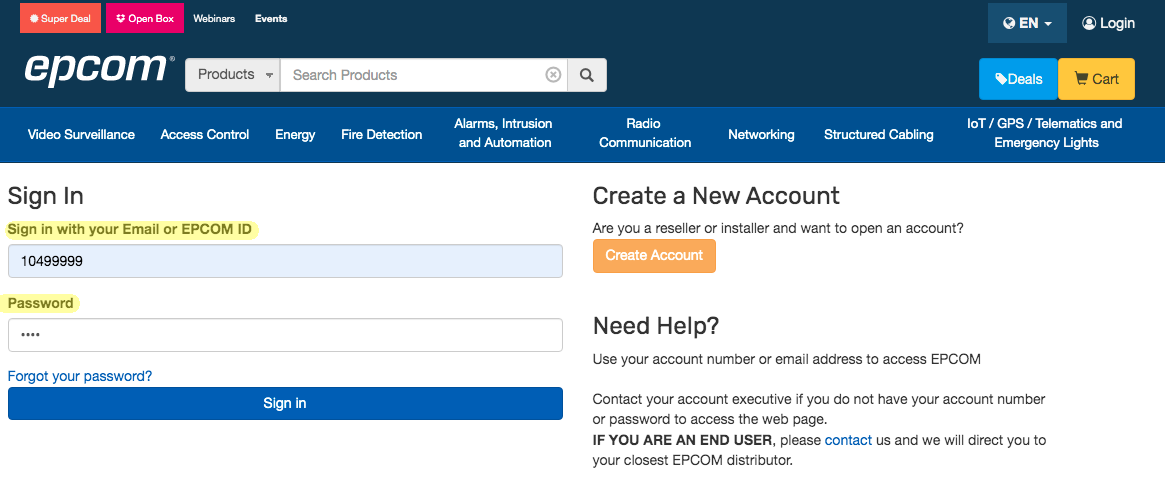
1.- Enter epcom.net and log in to your account. Start with your client number and password.
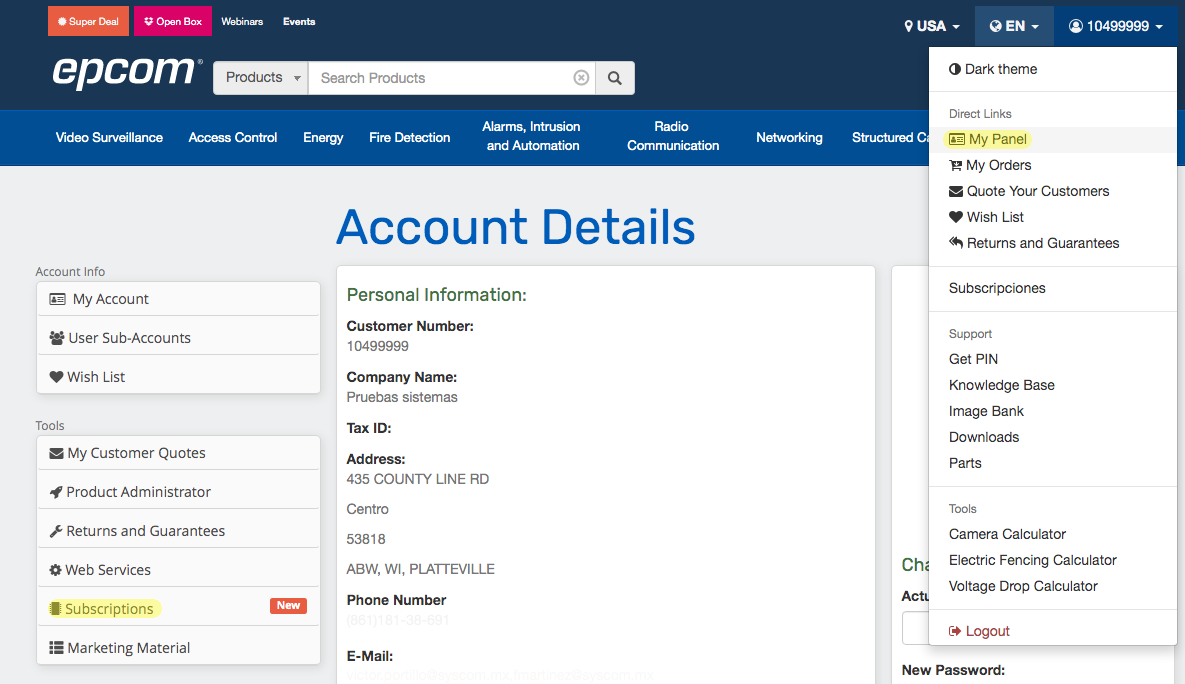
2.- Go to My Panel and click on Subscriptions.
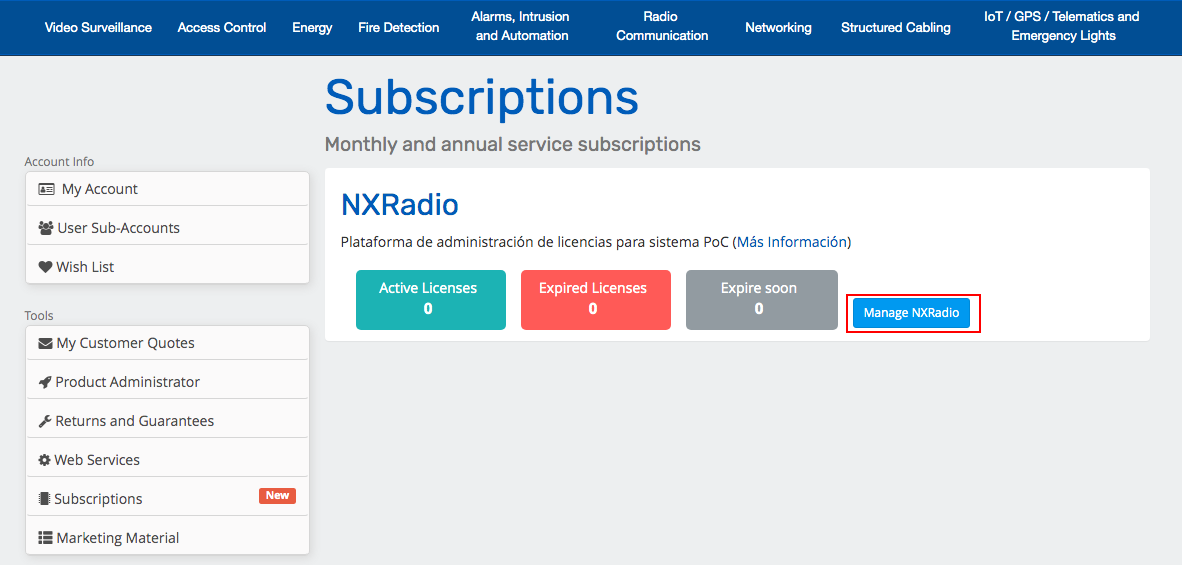
3.- Inside the Subscriptions tab, click the Manage NXRadio button.
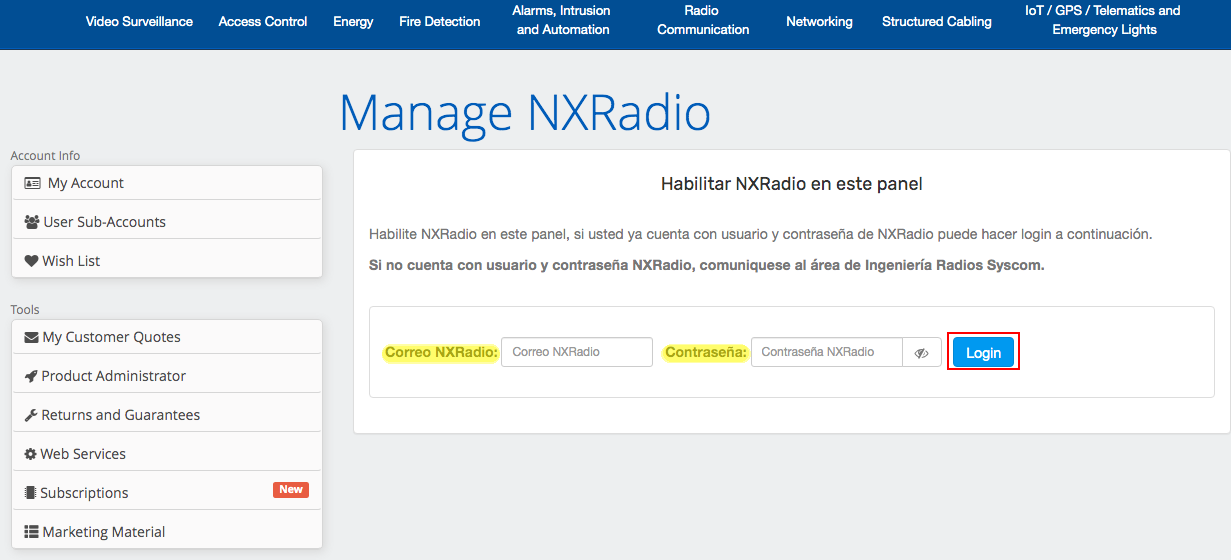
4.- If it’s the first time you access it is necessary to enable the panel login using your email and password registered for NXRadio.
5.- Inside the Manage Invoice tab, write the invoice number that contains your licenses and click on the Load button. I.E. FA21/123456
The panel will inform you that your licenses have been added, however, they have not been activated.
This function allows you to add the licenses to the panel and activate them later when you require them. The license is valid for 1 year and starts its subscription will run once you start them.
6.- To activate the licenses, click on the blue button Activate/Renovate/Reactivate licenses.
7.- On the tab Activate new licenses:
Select the invoice.
Type of license.
Quantity.
Click on the enlist button.
Optional alias, you can write a title that refers to your license.
Click on the green button to Activate Licenses.
8.- Confirm your activation.
9. Finally, check the new number of your license, number of Active, and Maximum licenses. This information will be automatically reflected in the NXRadio portal so that you can create a new radio user.
For more information, communicate with the technical support department.
Steps to add a REACTIVAM2M to M2M devices in the management platform (https://m2mservices.com/Admin)
These steps work for all M2M products requiring reactivation to add their corresponding subscription.
If the device is already suspended and its PREPAY END DATE time has passed on the platform, this option will be shown (ACTIVATE DEVICE).
We first have to look for the communicator, double click it, and enter its start tab.
To activate it, we have to click on (ACTIVATE DEVICE).
It will ask us if we wish to reactivate the device; click Yes.
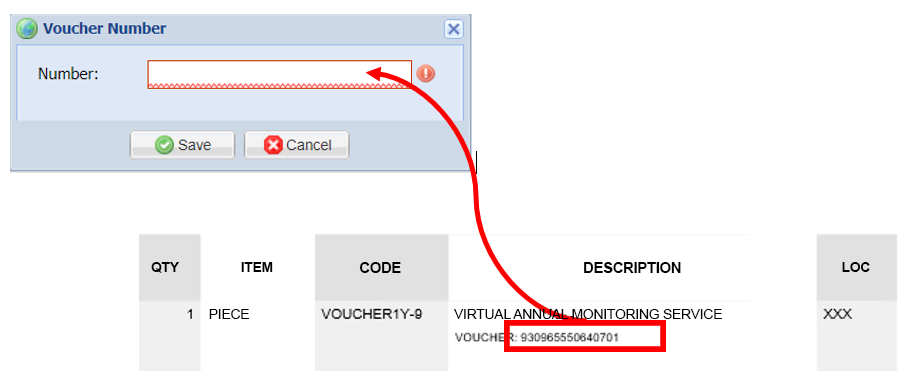
This screen will pop up; click on (voucher).
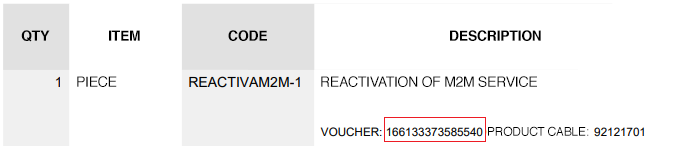
Enter your voucher number for reactivation (you can find it on your invoice).
You can find the 15-digit number (Voucher number) in your invoice.
Enter your voucher number and click (save).
How can we verify if we activated our device correctly? The ACTIVATE DEVICE has disappeared, indicating we did it correctly.
NOTE
It is important to place the subscription voucher as soon as possible, the reactivate only gives you until the end of the current month to enter your subscription. If the subscription is not placed, the device will remain suspended and you will have to purchase another REACTIVAM2M subscription.
Steps to add a REACTIVAM2M to M2M deice from the rcontrol app.
These steps work for all M2M products requiring reactivation to add their corresponding subscription.
Before starting, we have to check if the device needs o to be reactivated. The moment you open the app, we view the following notification. If the notification read the following: “Your voucher is about to expire in xx days. Please click here to top up with a new voucher“.
It only requires you to add a voucher. To learn to add a voucher, click below.
In case the notification reads, “Your voucher HAS EXPIRED and your device has been SUSPENDED. Please click here to top up with a new voucher.” It is necessary to reactivate.
1.- Starting the app, we see this screen. Click on the red notification.
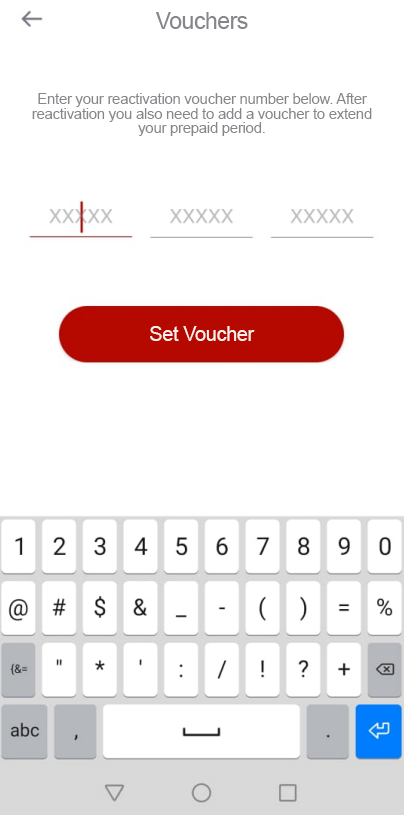
2.- After clicking the notification, this will directly send us to the menu to add the reactivation voucher and click on “Set voucher.”
The voucher/reactivation is on your invoice.
Note: In case of purchasing more than one license, they will be separated by an asterisk symbol *.
3.- After entering the voucher, we view the following notification.
After clicking “OK,” you will be sent to the main menu.
There is still a notification in red, but we are informed that the device requires a subscription voucher this time.
It is recommended to add the reactivation simultaneously; in case of not adding the subscription, the equipment can be suspended again (it is suggested to add a voucher before the last of the month in which it was reactivated, to avoid its deactivation.) you can follow the link on the button below.
Yes, today is the best moment to update a Video Surveillance System.
The AcuSense, LiveGuard, ColorVU, and DeepLearning technologies help faster analysis, avoid false alarms, and maintain maximum image quality.
Migrate Cameras to ColorVU, 24/7 Color Image, Identify Faces and License Plates in Complete Darkness
The ColorVU by Hikvision Cameras integrates an advanced sensor of super-high sensitivity that captures color in the worst light conditions. Most video surveillance systems in critical areas have migrated to HIKVISION’s ColorVU technology.
Customize Audio Alerts and Strobes
“You are accessing a restricted area!” Besides triggering strobe lights, it is possible to customize voice messages to activate when detecting an intruder.
Customize Audio Alerts and Strobes
AcuSense: People and Vehicle Detection (NO MORE false alarms!)
This way, we receive only important alerts to our mobile device or to find evidence in seconds (“Nobody likes to receive alerts when the wind moves a branch”).
The installer can replace the recorder or integrate new cameras with AcuSense + ColorVU technologies.
We can observe how the AcuSense cameras filter out false alarms caused by plants, rain, animals, shadows, and lights:
Search through months of recorded footage in seconds.
HIKVISION has people and vehicle search functions with filters, search through months of recording footage in seconds.
Cameras with DeepLearning technology are required.
Perimeter Protection, PIR with Camera and Maximum Wireless Coverage with AXPRO
AXPRO is the top product line for wireless perimeter protection with 4G LTE support (ULTRA Low data consumption, can operate with 25 MB a month).
AXPRO can integrate even with OPTEX, Politec, and RBTEC sensors, allowing intruder detection with false alarms and maximum security.